 AI Generated Apps AI Code Learning Technology
If you have been watching the AI API cost comparison charts lately, one number keeps catching developer attention: Gemini 2.5 Flash-Lite at $0.10 per million input tokens is landing 4x cheaper than GPT-4o Mini and over 13x cheaper than Claude Haiku. Add a genuinely free tier — no credit card, no expiry, access to Google’s actual frontier models — and it is no surprise developers are actively moving workflows over.
But here is the problem: the free Gemini API key is real, and getting one takes five minutes. Yet more developers than you would expect hit a wall before making a single successful call, because Google runs its AI through three completely different surfaces, and picking the wrong one wastes an afternoon. Most 429 errors developers hit in the first week come not from bad code, but from a misunderstanding of how quotas are actually structured in 2026.
This guide cuts through all of it. You will know exactly where to go, what to click, what the free tier actually gives you right now, why your quota does not multiply when you create extra keys, how to add Gemini to n8n using the official credential type, and what to do when you hit the errors that trip up nearly everyone.
First: Three Google AI Surfaces — Pick the Right One
Before you open any Google interface, this distinction matters more than anything else in this guide.
Google AI Studio (aistudio.google.com) is where developers create Gemini API keys. Free. No credit card. You get a working key against the Gemini Developer API in minutes. This is what this guide covers.
Vertex AI (cloud.google.com) is Google Cloud’s enterprise machine learning platform. Higher rate limits, enterprise SLAs, different billing, different authentication (service accounts and OAuth2 rather than simple API keys), and designed for production deployments at scale. New Google Cloud accounts receive $300 in credits valid for 90 days, which covers Vertex AI Gemini usage — but there is no permanent free tier once those credits expire. If you are just building automations, learning, or prototyping, you do not need Vertex AI.
The Gemini App (gemini.google.com) is the consumer chat interface, the equivalent of ChatGPT’s web UI. A Google One AI Premium subscription gives you better access inside the chat app. It does not give you API credits or API access. This is a completely separate product from the API, even though it runs on the same underlying models.
The rule to remember: API calls from code, automation tools, or n8n workflows always start at Google AI Studio.
What You Actually Need Before You Start
A Google account. That is everything. No credit card. No Google Cloud project setup. No phone number beyond what your Google account already has. Any standard Gmail or Google Workspace account works. The entire setup takes under five minutes.
One important note on regions: the Gemini Developer API free tier is available in most countries worldwide, but not in regions subject to US export restrictions. If AI Studio does not show you a free-tier option or asks you to verify your country, check Google’s available regions documentation.
Step 1: Open Google AI Studio
Go to https://aistudio.google.com and sign in with your Google account.
If this is your first visit, Google will prompt you to review and accept the Generative AI Terms of Service and confirm your country. Both steps are quick. Once past them, you land on the main AI Studio workspace — a prompt testing and API management interface.
Step 2: Go to the API Key Page
Find “Get API key” in the left navigation panel, or go directly to https://aistudio.google.com/apikey.
This is the central API key management page for the Gemini Developer API. All keys you create here are tied to Google Cloud projects behind the scenes, even if you never manually touch Google Cloud Console.
Step 3: Create Your API Key
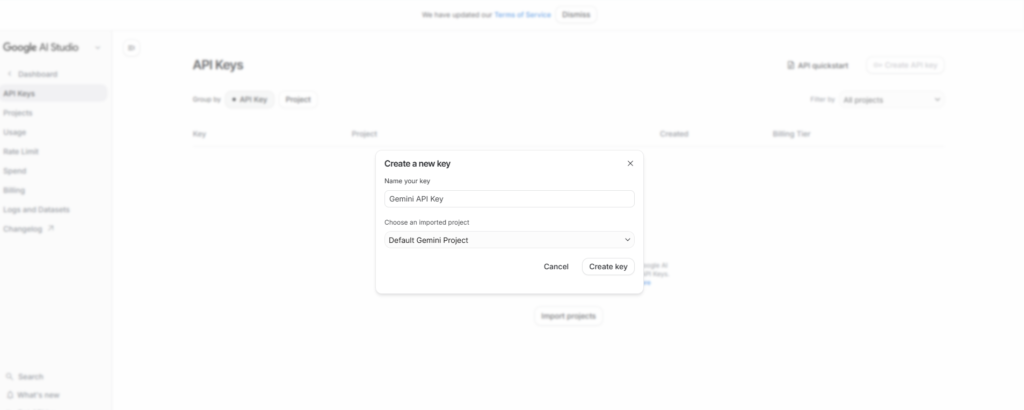
Click “Create API key.”
Two choices appear:
“Create API key in new project” — Google creates a fresh Google Cloud project automatically and generates your key within it. This is the correct choice for first-time setups. You do not need to configure anything in Google Cloud Console.
“Create API key in existing project” — Use this if you have an existing Google Cloud project you want to associate the key with. Useful for teams that already manage billing accounts and want to keep all credentials organized under one project.
Select your preferred option. Your API key generates and appears on screen. Copy it immediately. Store it in a password manager, a .env file (never committed to a repository), or your team’s secrets vault.
The key starts with AIza followed by a long alphanumeric string. This is the format for Gemini API keys generated from AI Studio.
The Most Important Quota Rule Developers Miss in 2026
This one misconception causes the majority of frustrating rate limit failures, and most guides skip it entirely.
Rate limits on the Gemini API are applied per Google Cloud project, not per API key.
If you create three API keys within the same project because you want higher limits — you do not get three times the quota. All three keys draw from the same pool. You have exactly the same limits you started with. The official Google rate limits documentation, updated April 28, 2026, is explicit on this point.
The implication: creating more keys does not help. If you need higher throughput, you either need to upgrade to a paid tier (Tier 1 activates the moment you add a billing account to the project — you do not have to spend anything, just link the account) or create keys in separate projects under separate billing accounts.
For most developers working on personal projects or building internal automations, the free tier is sufficient. For production workloads serving real users, the jump to Tier 1 — which requires no upfront spend and just takes billing account linkage — is usually the right call.
What the Free Tier Gives You in 2026: The Honest Picture
The free tier changed significantly in late 2025. In December 2025, Google reduced free tier quotas by 50 to 80 percent across all models, citing fraud and abuse. In February 2026, Gemini 2.0 Flash was deprecated and officially retired on March 3, 2026. If tutorials you have read reference Gemini 2.0 Flash as a free option, they are outdated.
Here is the current free tier picture as of April 2026:
Gemini 2.5 Pro: 5 requests per minute (RPM), 100 requests per day (RPD), 250,000 tokens per minute (TPM). The most capable reasoning model on the free tier. Full 1 million token context window. Good for prototyping complex tasks, evaluating model quality, and occasional high-quality completions. Not suitable for sustained production traffic at these limits.
Gemini 2.5 Flash: 10 RPM, 250 RPD, 250,000 TPM. The best balance on the free tier for most automation workflows. Strong performance across general tasks — chatbots, content generation, summarization, data extraction. On the paid tier, Flash costs $0.30 per million input tokens and $2.50 per million output tokens, making it highly competitive.
Gemini 2.5 Flash-Lite: 15 RPM, 1,000 RPD, 250,000 TPM. The throughput leader on the free tier. Best for high-volume simpler tasks: classification, extraction, routing decisions, templated rewrites. On the paid tier, Flash-Lite costs $0.10 per million input tokens and $0.40 per million output tokens — the cheapest capable model in Google’s lineup and among the cheapest across all major providers.
All free tier models: full 1 million token context window, multimodal support (text, images, video, code execution), daily quota reset at midnight Pacific Time.
Preview models like Gemini 3 Flash and Gemini 3.1 Flash-Lite are technically accessible on the free tier with more restrictive and frequently adjusted limits, but are not recommended for building workflows around — their quotas and availability change without notice.
One important privacy note specific to the free tier: Google’s terms indicate that prompts and responses submitted on the unpaid tier may be used to improve Google’s products. If you are processing sensitive data, customer information, or proprietary content, upgrade to Tier 1 (which requires enabling billing but no minimum spend) to opt out of this data handling.
Step 4: Your First API Call
The Gemini Developer API endpoint is at https://generativelanguage.googleapis.com. Here is a curl test call you can run immediately after generating your key:
curl "https://generativelanguage.googleapis.com/v1beta/models/gemini-2.5-flash:generateContent?key=YOUR_API_KEY"
-H 'Content-Type: application/json'
-X POST
-d '{ "contents": [{ "parts":[{"text": "What are three reasons developers are switching to Gemini in 2026?"}] }] }'
For Python, Google recommends using the new Google GenAI SDK (not the legacy google-generativeai library, which was deprecated in November 2025):
pip install google-genai
import os from google import genai

client = genai.Client(api_key=os.environ.get("GEMINI_API_KEY"))

response = client.models.generate_content( model="gemini-2.5-flash", contents="What are three reasons developers are switching to Gemini in 2026?" )

print(response.text)
Store your key as an environment variable named GEMINI_API_KEY (or GOOGLE_API_KEY — both work with the SDK) rather than hardcoding it in your script.
How to Add Your Gemini API Key to n8n
n8n uses a dedicated credential type called “Google Gemini(PaLM) API” for Gemini integration. According to the official n8n documentation for Google Gemini(PaLM) credentials at https://docs.n8n.io/integrations/builtin/credentials/googleai/, the credential requires two fields: the API Host URL and your API Key.
The API Host URL is always https://generativelanguage.googleapis.com — this is the default and does not need to change. The n8n documentation explicitly notes that the related nodes do not yet support custom hosts or proxies for the API host.
Setting up the credential in n8n:
- In your n8n instance, open Credentials
- Click “Add Credential”
- Search for “Google Gemini(PaLM)” and select it
- The API Host field will already be populated with https://generativelanguage.googleapis.com — leave this as-is
- Paste your Gemini API key (starting with AIza) into the API Key field
- Click “Save”
n8n will test the connection. If it returns “Connection tested successfully,” your credential is ready to use.
Important context from the n8n Google credentials overview at https://docs.n8n.io/integrations/builtin/credentials/google/: n8n supports multiple authentication methods for different Google services. For Google Sheets, Gmail, Drive, and Calendar, OAuth2 is recommended and is available through either the standard OAuth setup or the Managed OAuth2 flow (available for n8n Cloud users). For Gemini specifically, you use the dedicated Google Gemini(PaLM) API credential with a direct API key — not OAuth2. These are two separate credential types in n8n and should not be confused.
For n8n Cloud users, Google also offers Managed OAuth2 for various Google service nodes, which provides a simplified credential creation process without needing to set up your own Google Cloud Console OAuth2 application. This applies to Google Sheets, Gmail, and similar services — not to Gemini, which uses the API key credential.
Once your Google Gemini(PaLM) credential is saved, you can use it with:
The Google Gemini Chat Model node in n8n’s AI Agent and chain workflows (the primary use case for automation)
Any n8n node that supports the Google Gemini(PaLM) credential type in its authentication options
For building AI agent workflows, add the Google Gemini Chat Model sub-node as the language model input for an AI Agent node, select your saved credential, choose your model (gemini-2.5-flash for most automation use cases), and configure temperature and other parameters.
If you prefer a visual walkthrough of the full Google credentials setup in n8n — including OAuth2 for Google Sheets and Drive alongside the Gemini API key flow — the video below covers the complete process step by step:
Gemini vs OpenAI Pricing in 2026: Why Developers Are Switching
This is the real reason the Gemini free tier search volume spiked in 2026 and keeps climbing.
Gemini 2.5 Flash-Lite at $0.10 per million input tokens sits against GPT-4o Mini at $0.15 per million input tokens — Gemini is 33 percent cheaper on input. Against Claude Haiku 4.5 at $1.00 per million input tokens, Gemini Flash-Lite is 10x cheaper.
Gemini 2.5 Flash at $0.30 per million input tokens exactly matches GPT-4o Mini’s output pricing but with materially stronger model quality by most benchmarks in 2026.
The context window is a structural advantage no other provider fully matches across its entire lineup: every single Gemini 2.5 model supports a 1 million token context window. OpenAI’s GPT-5.2 matches at 1 million, but most of their other models cap at 128K. Anthropic’s Claude tops out at 200K. For workflows involving long documents, full codebase analysis, or extended conversation history, Gemini’s 1 million token baseline is genuinely differentiated.
For multimodal workflows specifically, Gemini’s free tier includes image, video, and audio understanding with no separate image API. You send an image alongside a text prompt in the same request and pay only the input token count for the image. There is no separate per-image charge on the free tier.
Batch API: for non-real-time workloads on the paid tier, all Gemini models support batch processing with a 50 percent cost reduction. A workflow processing documents, summarizing articles, or classifying records overnight pays half the standard token rate.
Common Errors and Fixes
429 RESOURCE_EXHAUSTED
You have hit a rate limit. Check which dimension you exceeded: RPM (requests per minute), TPM (tokens per minute), or RPD (requests per day). The error response includes a QuotaViolation detail that specifies which limit was hit. For RPM limits, implement exponential backoff — wait 1 second, then 2, then 4, etc. For RPD limits, you have used your daily allocation and need to wait until midnight Pacific Time for the quota to reset, or upgrade to Tier 1.
API key not working — connection test fails in n8n
Confirm the key starts with AIza. Verify you are pasting into the “API Key” field of the Google Gemini(PaLM) API credential, not an OAuth2 or Service Account credential. Confirm you have not added extra whitespace when copying. Test the key directly with a curl command first to isolate whether the issue is the key itself or the n8n setup.
“API keys are not supported by this API. Expected OAuth2 access token”
You are using a Vertex AI endpoint or a Google Cloud Console-configured credential that requires OAuth2, not a Google AI Studio API key. The Gemini Developer API at generativelanguage.googleapis.com uses the AIza API key format. If you see this error, confirm your n8n credential is set to credential type “Google Gemini(PaLM) API” and the host URL is https://generativelanguage.googleapis.com.
Quota shows 0 RPM or 0 RPD even on a fresh account
This is a known issue that affects some accounts, particularly after the December 2025 infrastructure changes. It can indicate a standing issue with the project, a region-level capacity constraint, or an account flag. Try creating a new Google Cloud project in AI Studio and generating a fresh key under that project. If the problem persists, check the Google AI Studio status page and the r/GeminiAI community for current outage reports.
Free tier limits dropping unexpectedly
The free tier quotas are not guaranteed to remain static. Google’s own rate limits documentation (updated April 28, 2026) states explicitly that specified rate limits are not guaranteed and actual capacity may vary. If your workflow depends on consistent free-tier throughput, build in retry logic and fallback handling. For anything in production, linking a billing account to unlock Tier 1 — which costs nothing unless you actually make paid API calls — is the more reliable foundation.
How to Upgrade from Free Tier to Tier 1 When You Need More
Tier 1 activates instantly the moment you link a billing account to your Google Cloud project. You do not need to spend anything — just adding a valid payment method triggers the tier upgrade.
From AI Studio: go to your project settings (aistudio.google.com/projects), find your project, and click to enable billing. Follow the prompts to link or create a Google Cloud billing account. Once linked, your project upgrades to Tier 1 within minutes.
Tier 1 delivers approximately 150 RPM for Gemini 2.5 Pro and up to 300 RPM for Flash variants — a 30x improvement over the free tier for Pro, and roughly 15-30x improvement for Flash. RPD limits also increase significantly.
The data privacy situation also changes at Tier 1: paid usage is not used to improve Google’s products the same way free tier usage is.
Set up a billing alert immediately after enabling billing. Go to Google Cloud Console, navigate to Billing, then Budgets and Alerts, and create a notification at whatever threshold you are comfortable with — $10 or $25 for testing, higher for production. This prevents surprises.
Quick Reference
Google AI Studio (key creation): https://aistudio.google.com/apikey
Google AI Studio (projects and tiers): https://aistudio.google.com/projects
Official Gemini API pricing: https://ai.google.dev/gemini-api/docs/pricing
Official rate limits (updated April 28, 2026): https://ai.google.dev/gemini-api/docs/rate-limits
n8n Google credentials overview: https://docs.n8n.io/integrations/builtin/credentials/google/
n8n Google Gemini(PaLM) credentials: https://docs.n8n.io/integrations/builtin/credentials/googleai/
API Host URL for n8n: https://generativelanguage.googleapis.com
Key format: starts with AIza
Free tier — no credit card needed: yes
Quota applies: per project, not per key
Daily quota reset: midnight Pacific Time
Google Cloud Console: https://cloud.google.com
Final Thoughts
Getting your free Gemini API key is genuinely a five-minute process from a Google account to a working API call. Go to Google AI Studio, click “Get API key,” create it in a new project, copy the key, and you are live.
What trips people up is not the setup — it is the model selection and quota reality. Use Gemini 2.5 Flash as your default starting model. It handles the vast majority of automation and content tasks with good throughput on the free tier. Reserve 2.5 Pro for tasks that genuinely need stronger reasoning. Use Flash-Lite for high-volume classification or routing. Avoid building around Gemini 2.0 models — they are deprecated.
In n8n, the setup is similarly clean: create a Google Gemini(PaLM) API credential, paste your AIza key, leave the host URL as-is, save, and you have Gemini powering your AI Agent workflows. No OAuth2 setup, no Google Cloud Console configuration, no redirect URIs — just a key and an endpoint.
When you outgrow the free tier, linking a billing account unlocks Tier 1 instantly with 30x better rate limits at no upfront cost. At that point you are only paying for the tokens you actually consume — starting at $0.10 per million input tokens for Flash-Lite.