 AI Generated Apps AI Code Learning Technology
WordPress application passwords are one of those features that work perfectly when everything is configured correctly — and cause absolute confusion when something is slightly off. In 2026, as more developers build headless WordPress setups, connect automation tools like n8n, and push content programmatically from AI pipelines, application passwords have become one of the most searched and most misunderstood parts of the WordPress ecosystem.
The section is missing from the profile page. Or it is greyed out. Or you generate one and still get a 401 Unauthorized error. Or a security plugin quietly disabled the entire feature and you have no idea.
This guide covers all of it. You will learn what WordPress application passwords actually are, exactly how to create one, how Basic Auth works with the REST API, how to connect everything to n8n using the official WordPress integration, and — critically — how to diagnose and fix every common issue that makes this feature disappear or stop working.
What Are WordPress Application Passwords?
WordPress application passwords are revocable, per-application credentials tied to a specific WordPress user account. They were introduced in WordPress 5.6 (December 2020) and are now a core WordPress feature — no plugin required on any modern WordPress installation.
According to the official WordPress Advanced Administration Handbook, an application password is:
- Tied to a specific WordPress user account
- Intended for API authentication — specifically the WordPress REST API and (where enabled) XML-RPC
- Stored hashed in WordPress and shown only once at creation time
- Individually revocable without affecting the user’s main login password
There is one thing that surprises many developers when they first encounter this: application passwords cannot be used to log into wp-admin via wp-login.php. They are exclusively for applications, scripts, and automated integrations — not for human login sessions. A bad actor with your application password still cannot access your WordPress dashboard through the normal login page.
This is the fundamental security model: you give third-party tools their own credential, scoped to API access only, which you can revoke at any time without changing your account password or disrupting anything else.
Why Application Passwords Matter in 2026
The reason this topic is trending heavily right now comes down to three converging forces.
First, headless WordPress is mainstream. Teams are decoupling their WordPress back-end from their front-end, serving content through the REST API to React, Next.js, or other frameworks. Every one of those pipelines needs authenticated API access.
Second, AI content automation has exploded. Tools like n8n, Make, and custom scripts are now being used to generate, schedule, and publish content programmatically. All of them need to authenticate with WordPress to write posts, manage media, and update metadata.
Third, security plugins are getting more aggressive. Popular security plugins — Wordfence, Solid Security (formerly iThemes Security), All-In-One Security, and others — have started disabling or blocking application passwords as part of their hardening recommendations. Many developers are encountering the consequences of that without knowing why.
Prerequisites: What You Need Before You Start
Before you can generate an application password, four conditions must be true. Missing any one of them will either hide the feature entirely or cause it to fail silently.
WordPress 5.6 or later. Application passwords are a core feature from version 5.6 onward. If you are running an older version, update first. On any reasonably maintained WordPress installation in 2026, this requirement is already met.
HTTPS enabled on your site. WordPress requires that your site be served over HTTPS before application passwords are available in the admin interface. This is a security requirement — Basic Auth credentials sent over plain HTTP can be intercepted in transit. There is a code-level workaround for local development environments (covered in the troubleshooting section), but for any production site, SSL is non-negotiable.
REST API active. The WordPress REST API is enabled by default on all standard installations. It can be disabled by plugins or custom code, but unless someone has explicitly turned it off, it will be available.
A user account with at least Contributor role. Any user with Contributor, Author, Editor, or Administrator role can generate application passwords. The access level granted to an application will match the role of the user account used — which is why choosing the right user for each integration matters.
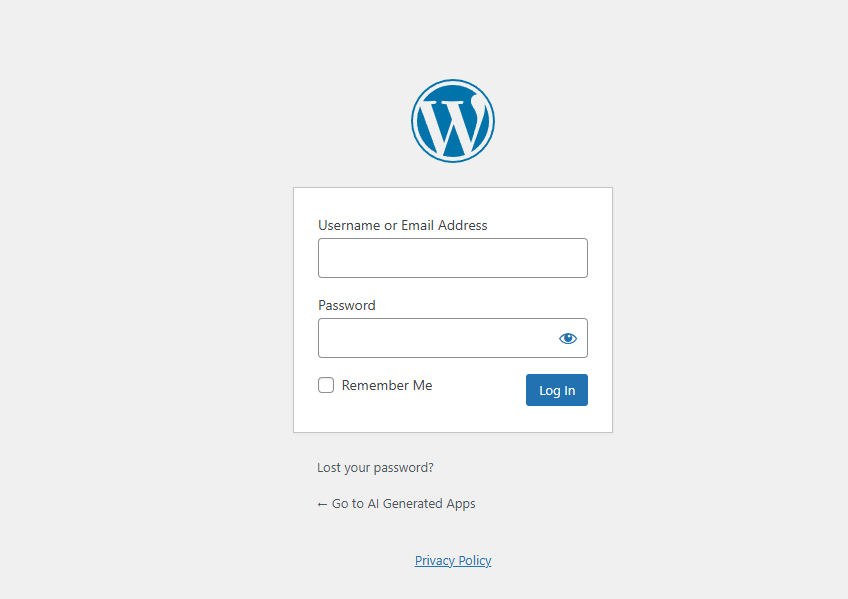
Step 1: Log Into WordPress Admin
Go to your WordPress admin dashboard at yoursite.com/wp-admin and log in with the user account you want to use for the API integration.
For production automation workflows, it is a best practice to use a dedicated API user account rather than your personal administrator account. Create a user with the minimum role necessary for the integration’s tasks — if an automation only needs to publish posts, an Author role is sufficient. There is no need to hand an automation tool the keys to your full administrator account.
Step 2: Navigate to the Application Passwords Section
Once logged in:
- Go to Users in the left sidebar
- Click “Profile” (for your own account) or “All Users → Edit” for another user
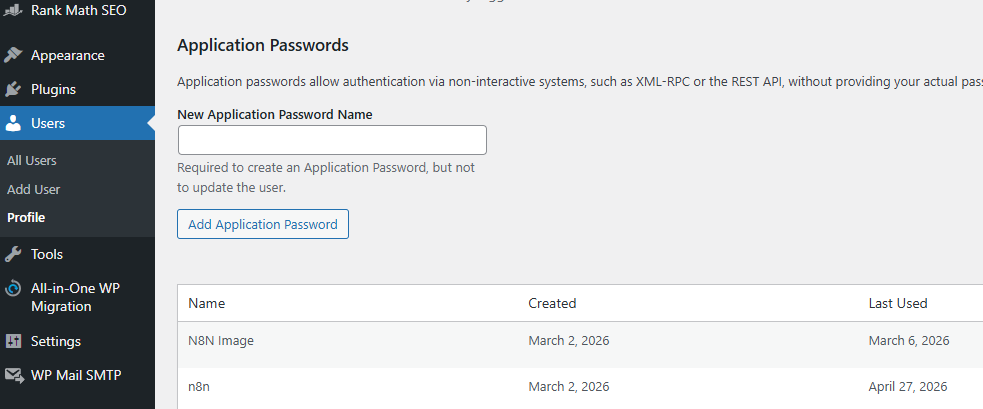
Scroll down toward the bottom of the profile page. You will find a section labeled “Application Passwords.”
If you do not see this section, jump to the troubleshooting section below. The most common reasons it disappears are a missing HTTPS connection, a security plugin that has disabled the feature, or Authorization headers being stripped by your server configuration.
Step 3: Create the Application Password
In the Application Passwords section:
- Find the “New Application Password Name” input field
- Enter a descriptive name that identifies the integration — something like “n8n Production”, “Content Pipeline”, “Zapier Integration”, or “CI Deploy Bot”
- Click “Add New Application Password”
WordPress will immediately display the generated password. It looks something like this:
AbCd EfGh IjKl MnOp QrSt UvWx
This is a 24-character password displayed in groups of four characters separated by spaces for readability. Copy the entire thing — spaces included or excluded, both work. WordPress strips spaces before validation, so the password works with or without them.
This is the only time WordPress will display this password. It is stored hashed and cannot be retrieved later. If you lose it before saving it, you must revoke it and generate a new one.
Store the password immediately in a secure location: your password manager, your secrets manager (like HashiCorp Vault or AWS Secrets Manager), or an environment variable in your deployment configuration. Do not store it in plaintext in a file that gets committed to a repository.
Step 4: Understand How to Use the Application Password with Basic Auth
WordPress application passwords authenticate using HTTP Basic Authentication (RFC 7617). This is a widely supported authentication standard that works with virtually every HTTP client.
The way it works: your application sends an Authorization header with every REST API request. The header value is the word “Basic” followed by a space, followed by the Base64 encoding of your username and application password joined by a colon.
The construction looks like this:
Authorization: Basic base64(“username:application_password”)
In practice, most tools and libraries handle this encoding for you automatically. But understanding the underlying format is essential when debugging 401 errors.
Here is a curl example making an authenticated request to the WordPress REST API:
curl –user “yourusername:AbCd EfGh IjKl MnOp QrSt UvWx” https://yoursite.com/wp-json/wp/v2/users/me
If that returns your user data, authentication is working. If it returns a 401, proceed to the troubleshooting section.
Here is a Python example:
import requests from requests.auth import HTTPBasicAuth
response = requests.get( “https://yoursite.com/wp-json/wp/v2/posts“, auth=HTTPBasicAuth(“yourusername”, “AbCd EfGh IjKl MnOp QrSt UvWx”) ) print(response.json())
And for creating a post:
import requests from requests.auth import HTTPBasicAuth

response = requests.post( "https://yoursite.com/wp-json/wp/v2/posts", auth=HTTPBasicAuth("yourusername", "AbCd EfGh IjKl MnOp QrSt UvWx"), json={ "title": "My API Post", "content": "Content goes here.", "status": "publish" } ) print(response.json())
The key REST API endpoints you will use most frequently:
/wp-json/wp/v2/posts // — create, read, update, delete posts
/wp-json/wp/v2/pages // — create, read, update, delete pages
/wp-json/wp/v2/media // — upload and manage media files
/wp-json/wp/v2/users // — manage users
/wp-json/wp/v2/categories // — manage categories
/wp-json/wp/v2/tags // — manage tags
Step 5: Managing and Revoking Application Passwords
Back on the User Profile page, in the same Application Passwords section, you can see all existing application passwords for that user. The list shows the name you gave each password, when it was created, the last time it was used, and the last IP address that used it.
You can revoke any individual password by clicking “Revoke” next to it. The integration that was using that password will immediately stop working until you generate a new credential and update the configuration.
You can also revoke all application passwords for a user at once by clicking “Revoke All Application Passwords” — useful if you suspect any credential has been compromised.
If you manage WordPress via SSH, WP-CLI provides command-line control over application passwords. Per the official documentation:
wp user application-password create 123 “myapp”
This creates an application password for user ID 123 and prints it once. The –porcelain flag outputs only the raw password, which is useful for scripts and CI/CD pipelines.
wp user application-password list 123 –fields=uuid,name,created,last_used,last_ip
This lists all application passwords for that user with metadata.
wp user application-password delete 123
This removes a specific password by UUID.
How to Connect WordPress to n8n Using Application Passwords
n8n has a dedicated WordPress node with full native support for creating and managing posts, pages, and users. Here is how to configure the credentials.
Setting Up WordPress Credentials in n8n
According to the official n8n documentation at https://docs.n8n.io/integrations/builtin/credentials/wordpress/, the WordPress credential requires three fields:
WordPress URL — the base URL of your WordPress site, such as https://yoursite.com. Do not include a trailing slash or any path after the domain.
Username — your WordPress username (the login name, not the display name or email).
Password — your application password, not your main WordPress login password. This is where most connection failures originate: developers accidentally paste their real WordPress password here. Always use the application password generated in the steps above.
To add credentials in n8n:
- In your n8n instance, go to Credentials
- Click “Add Credential”
- Search for “WordPress” and select it
- Fill in your WordPress URL, username, and application password
- Click “Save”
n8n will validate the connection. If you get an authentication error, double-check that the URL starts with https:// (not http://) and that you are using the application password, not your main WordPress password.
Using the WordPress Node in n8n
The WordPress node (n8n-nodes-base.wordpress) is documented at https://docs.n8n.io/integrations/builtin/app-nodes/n8n-nodes-base.wordpress/ and supports the following resource operations:
Posts: Create, Get, Get Many, Update Pages: Create, Get, Get Many, Update Users: Get, Get Many
To use it in a workflow:
- Add the WordPress node to your canvas
- Select your saved WordPress credentials
- Choose your resource (Post, Page, or User)
- Choose your operation (Create, Get, Update, etc.)
- Fill in the required fields — title, content, status, categories, etc.
For AI content automation, a typical n8n workflow would connect an AI model node (OpenAI or DeepSeek) to a WordPress node, passing the generated title and content directly into a Create Post operation. The application password handles all the authentication transparently.
Troubleshooting: Why Your Application Password Is Missing or Not Working
This is the section that solves the majority of real-world problems.
Application Passwords section is completely missing from the profile page
The most common cause is that your site is not running on HTTPS. WordPress requires SSL to display the application passwords section. Verify your site loads at https:// before anything else.
The second most common cause is a security plugin. Wordfence, Solid Security, All-In-One Security, and several other plugins include settings that disable application passwords as a security hardening measure. Check each security plugin’s settings for options related to XML-RPC, REST API, or application passwords. Disable them temporarily to confirm this is the cause, then either leave them disabled or look for a less aggressive setting.
You can also force application passwords to be available on non-HTTPS environments (local development only — do not use this on production) by adding this to your theme’s functions.php or a site-specific plugin:
add_filter( ‘wp_is_application_passwords_available’, ‘__return_true’ );
Application Password section is greyed out
A greyed-out Application Passwords section typically means a filter hook is disabling the feature programmatically. Search your theme’s functions.php and any active plugins for wp_is_application_passwords_available and wp_is_application_passwords_available_for_user. Remove or adjust whichever is returning false.
401 Unauthorized after generating the password
If the Application Password section works fine but every API call returns 401, the most likely culprit is that Authorization headers are being stripped by your server before they reach WordPress.
Apache-based servers sometimes strip Authorization headers when PHP runs as CGI or with certain configurations. Fix by adding this to your .htaccess file:
RewriteEngine On RewriteCond %{HTTP:Authorization} ^(.) RewriteRule . – [e=HTTP_AUTHORIZATION:%1]
Or using this alternative:
SetEnvIf Authorization “(.*)” HTTP_AUTHORIZATION=$1
Nginx users should check their site configuration to ensure the Authorization header is passed through to PHP-FPM.
After making server configuration changes, test again with the curl command from earlier.
REST API blocked entirely
Some security plugins and hosting configurations block the REST API at the server level. If https://yoursite.com/wp-json/ returns a 403 or 404, the REST API is not accessible regardless of application password settings. Check security plugin settings for REST API blocking, and confirm with your hosting provider that REST API routes are not being blocked at the firewall or server configuration level.
Wrong URL format in tools
When configuring integrations like n8n, the WordPress URL must be the root domain with no trailing slash and no /wp-json path appended. The integration handles the REST API path construction internally. yoursite.com (without https) or yoursite.com/wp-json/ will both cause connection failures.
Security Best Practices for WordPress Application Passwords
Application passwords are powerful. Treating them carelessly is how sites get compromised or how content gets unintentionally modified or deleted.
Create one application password per integration. Do not share a single application password across multiple tools. If one tool is compromised, you revoke that one password without disrupting everything else.
Use dedicated low-privilege user accounts where possible. If your n8n workflow only needs to publish posts, create a dedicated WordPress user with Author or Editor role rather than using your Administrator account. The application password inherits the permissions of the user who generated it.
Never store application passwords in plaintext in source code or repositories. Use environment variables, secrets managers, or encrypted credential stores. Treat application passwords with the same care as API keys or database passwords.
Monitor the last-used metadata. The Application Passwords section on the profile page shows the last time each password was used and the last IP that used it. Review this periodically. If you see a password being used from an unexpected IP address, revoke it immediately.
Rotate credentials on a schedule. Establish a rotation policy — quarterly rotation is reasonable for most integrations. Revoke the old credential, generate a new one, and update the integration before revoking the old one.
Use HTTPS everywhere. Application passwords sent over plain HTTP can be intercepted. If any part of your stack is not using HTTPS, fix that before deploying any integrations.
Quick Reference: Everything You Need
Feature introduced: WordPress 5.6 (December 2020)
Location: Users > Profile > Application Passwords section
Requires: WordPress 5.6+, HTTPS, REST API active, user with Contributor role or higher
Authentication method: HTTP Basic Auth (RFC 7617)
Header format: Authorization: Basic base64(“username:application_password”)
Cannot be used for: wp-admin login via wp-login.php
Key REST API base URL: https://yoursite.com/wp-json/wp/v2/
Official WordPress docs: https://developer.wordpress.org/advanced-administration/security/application-passwords/
n8n WordPress credentials docs: https://docs.n8n.io/integrations/builtin/credentials/wordpress/
n8n WordPress node docs: https://docs.n8n.io/integrations/builtin/app-nodes/n8n-nodes-base.wordpress/
WordPress developer API docs: https://developer.wordpress.com/docs/api/
Common fix for missing section: Check HTTPS, check security plugins, check server Authorization header forwarding
Common fix for 401 errors: Add Authorization header passthrough to .htaccess or Nginx config
Final Thoughts
WordPress application passwords are a clean, built-in solution to one of the most common challenges in developer workflows — authenticating with WordPress programmatically without sharing your main credentials or installing extra plugins.
The setup is genuinely straightforward when the prerequisites are met: HTTPS on your site, WordPress 5.6 or newer, and no security plugin quietly blocking the feature. You navigate to your profile page, name the credential, copy the generated password once, and you are done.
The friction in 2026 almost always comes from one of three places: a security plugin that has disabled the feature, a server configuration that strips Authorization headers before they reach WordPress, or a developer accidentally using their real WordPress password instead of the application password in their integration settings.
Understanding these common failure points turns a frustrating debugging session into a five-minute fix. And once it is working — connected to n8n, wired into your content pipeline, or plugged into your deployment scripts — you have a secure, revocable, auditable API credential that keeps your main account protected while your automations run.